
A myntra catalogue rejection is one of the most frustrating emails a fashion seller can get — the shoot is done, the sheet is filled, and the lot still comes back with “Image Not Found” or “Style Group Conflict”. If you are new to the platform, start with our Myntra seller resource hub, which maps the full journey from onboarding to growth. This guide sits at the “listing quality” stage of that journey and focuses on one job: finding out why the lot failed and fixing it once.
At Uniqs Studio, Satyam and the team have prepared catalogues for 500+ D2C brands and marketplace sellers over 9+ years, and we see the same handful of upload-stage errors again and again. Most of them are not “Myntra being strict”; they are small mismatches between file names, SKU codes, image sizes and attribute values. Below you will learn what each myntra catalogue rejection reason really means, which ones need an edit, which ones need a reshoot, and the 12 fixes we run before any re-upload.
What are the key takeaways on Myntra catalogue rejection?
Most rejections come from four sources: missing or mismatched images, Style Group and SKU conflicts, incomplete mandatory attributes, and business-unit (BU) validation rules. Fix the source data first, then the images, then re-upload as a fresh, clean lot.
- Read the rejection report row by row — every error is tied to a specific style or SKU.
- “Image Not Found” is usually a file-name or URL mismatch, not a bad photo.
- One Style Group ID should hold one design in different colours or sizes — never two different designs.
- Mandatory attributes change by article type; download a fresh template for every lot.
- Reshoot only when the image itself breaks the style guide (crop, background, angle count, colour).
What is a Myntra catalogue rejection and why does it happen?
A Myntra catalogue rejection means a style, SKU or full lot you uploaded through the Partner Portal failed an automated or manual check and did not go live. It happens when data, images or attributes do not match Myntra’s template and style guide for that article type.
Think of an upload as three layers that must agree with each other: the listing sheet (style ID, Style Group ID, seller SKU, size, colour, attributes), the image set (file names, sizes, angles, background) and the business rules of the business unit you sell in (for example, women’s ethnic wear or men’s casual wear). When any one of those layers disagrees with the others, the system flags the row.
That is why the same photo can pass for one brand and fail for another. The image is not “good” or “bad” on its own — it has to be the right image, named the right way, attached to the right SKU, with the right attribute values next to it. Our earlier Myntra listing and catalogue QC checklist covers how to build a clean sheet from scratch; this post is for when something has already been rejected.
Upload-stage rejection vs post-approval issues
Upload-stage rejections happen before the style is live: the lot is rejected, or individual rows show errors such as “Image Not Found”, “Missing Mandatory Attributes” or “BU Validation Failed”. Post-approval issues are different — the style is approved but hidden, suppressed or put on hold later. Treat them as two separate problems, because the fixes and the people you talk to are different.
How do you read the Myntra rejection report before fixing anything?
Download the error report for the rejected lot, sort it by error type, and fix one error type at a time across all rows. Never re-upload the same file after “fixing” only the first row you noticed.
The report usually lists the style or SKU, the field that failed and a short reason. Copy it into a working sheet and add three columns of your own: root cause (data, image or rule), fix owner (catalogue team, studio or brand) and status. This simple step turns a scary list of 200 red rows into maybe five real problems.
- Group by error message. Fifty “Image Not Found” rows often share one cause, like a wrong folder name.
- Check one sample row end to end. Open the sheet, the image folder and the template side by side for that SKU.
- Find the pattern. Is it every SKU of one colour? Every style from one shoot day? Every row with a certain size?
- Fix at the source. Correct the master sheet or file-naming script, not just the export.
- Re-validate offline. Re-check counts, names and attributes before you upload again.
In our experience at Uniqs Studio, this one habit — fixing by pattern instead of by row — removes most repeat rejections, because it catches the hidden issue that would have failed the next lot too.
Why does Myntra show “Image Not Found” and how do you fix it?
The myntra image not found error almost always means the system could not match an image to a SKU — because the file name, folder, link or upload order did not match the sheet. The photo itself is usually fine; the connection between the photo and the row is broken.
These are the causes we find most often when sellers send us a rejected lot:
- File names that don’t match the SKU or style code — for example KRT-101-Blue_1.jpg in the folder but KRT101-BLUE in the sheet. One hyphen or one capital letter is enough to break the match.
- Extra spaces or hidden characters copied from Excel into file names or image URLs.
- Wrong file format — PNG, HEIC or WebP files where the template expects JPG.
- Broken or private image links when images are supplied as URLs from a cloud drive that needs a login.
- Images uploaded after the sheet, or into the wrong lot.
- Missing angles — the sheet points to image 4 and 5, but only three files exist.
A file-naming rule that prevents Myntra catalogue rejection
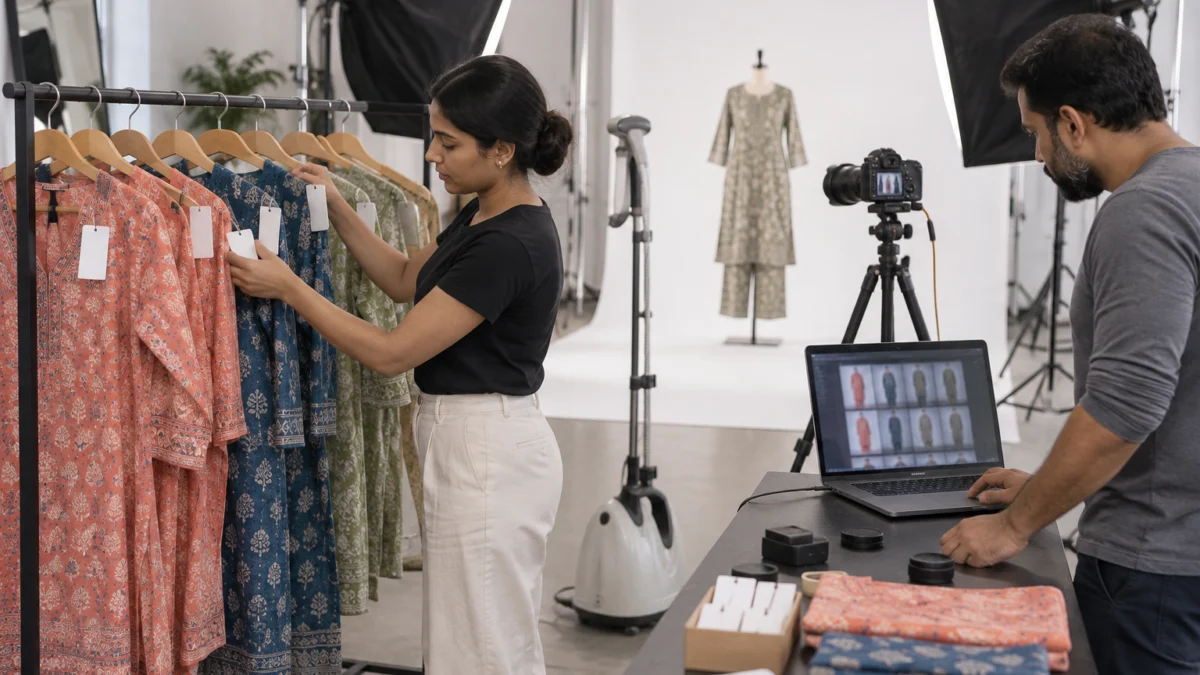
Pick one naming pattern and use it for every shoot — for example SellerSKU_01.jpg, SellerSKU_02.jpg and so on, where the SKU is copied directly from the master sheet and never typed by hand. At Uniqs Studio we deliver files SKU-wise in folders, already renamed to the client’s master codes, so the catalogue team only has to drag and drop. If you rename files yourself, run a quick count: number of SKUs × number of angles should equal the number of files in the folder.
What image specs must you meet to avoid a Myntra catalogue rejection?
Shoot in portrait orientation at high resolution, keep the background plain and consistent, show the full product without awkward crops, and supply the full angle set your category asks for. Most 2026 seller guides quote a minimum of 1000×1400 px in JPG, but always confirm the current style guide in the Partner Portal for your article type.
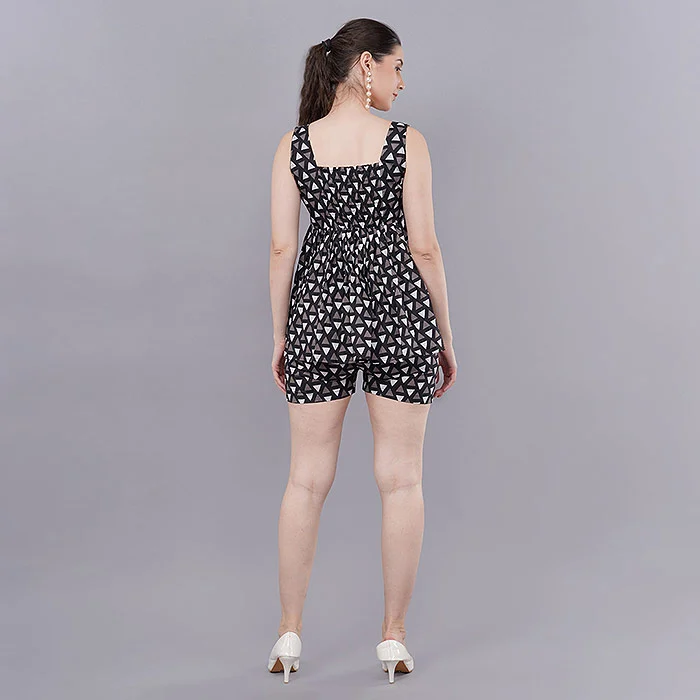
The myntra image size 1000×1400 figure is a minimum, not a target. Many brands deliver larger portrait files in the same ratio so the zoom view stays sharp. What matters more than the exact pixel count is that every image in a style follows the same frame: same ratio, same model height in frame, same background tone and the same lighting. Mixed frames inside one style are a common reason for manual QC rejection.
| Image check | What usually passes | What usually fails |
|---|---|---|
| Orientation & size | Portrait, at or above the minimum size in the style guide | Square or landscape crops, upscaled small files |
| File type | JPG in sRGB colour | PNG with transparency, HEIC from phones |
| Background | Plain, light and consistent across the style | Busy rooms, coloured walls, shadows that change per angle |
| Framing | Full product visible, head-to-toe for full-length apparel | Cut feet, cut hem, product touching the frame edge |
| Angles | Front, back, side and detail as the category needs | Only one or two images, or the same angle repeated |
| Text & marks | Clean image, no overlays | Watermarks, price text, logos added in editing |
| Colour | Matches the physical garment and the colour attribute | Over-saturated edits, colour that contradicts the sheet |
How on-model frames affect Myntra catalogue rejection
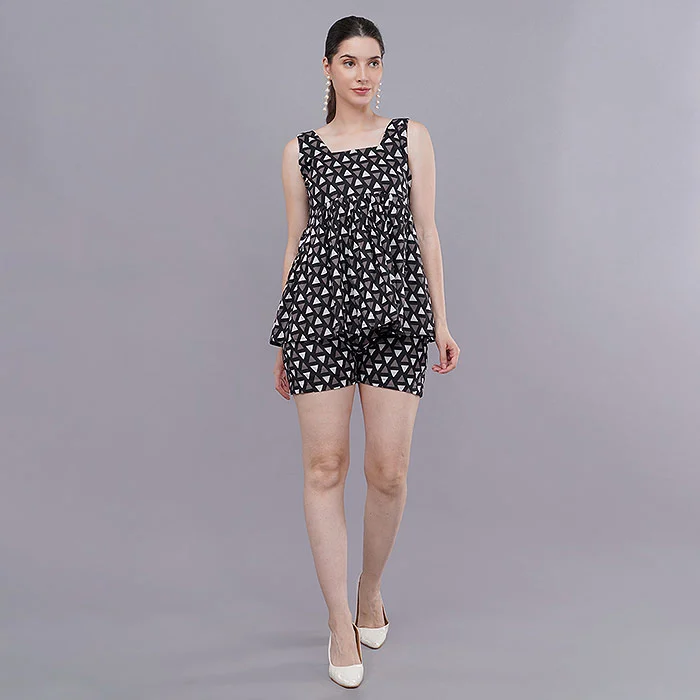
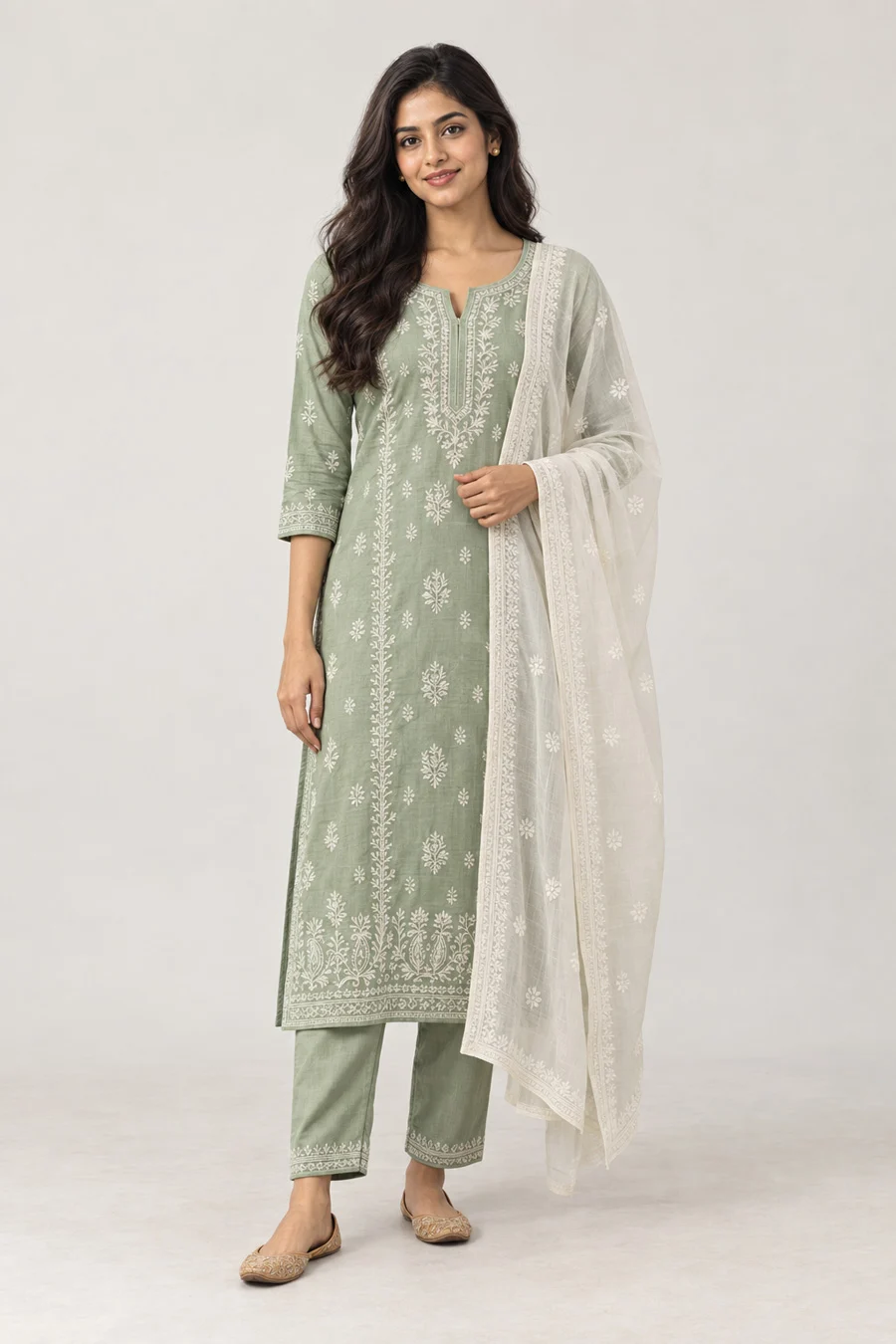
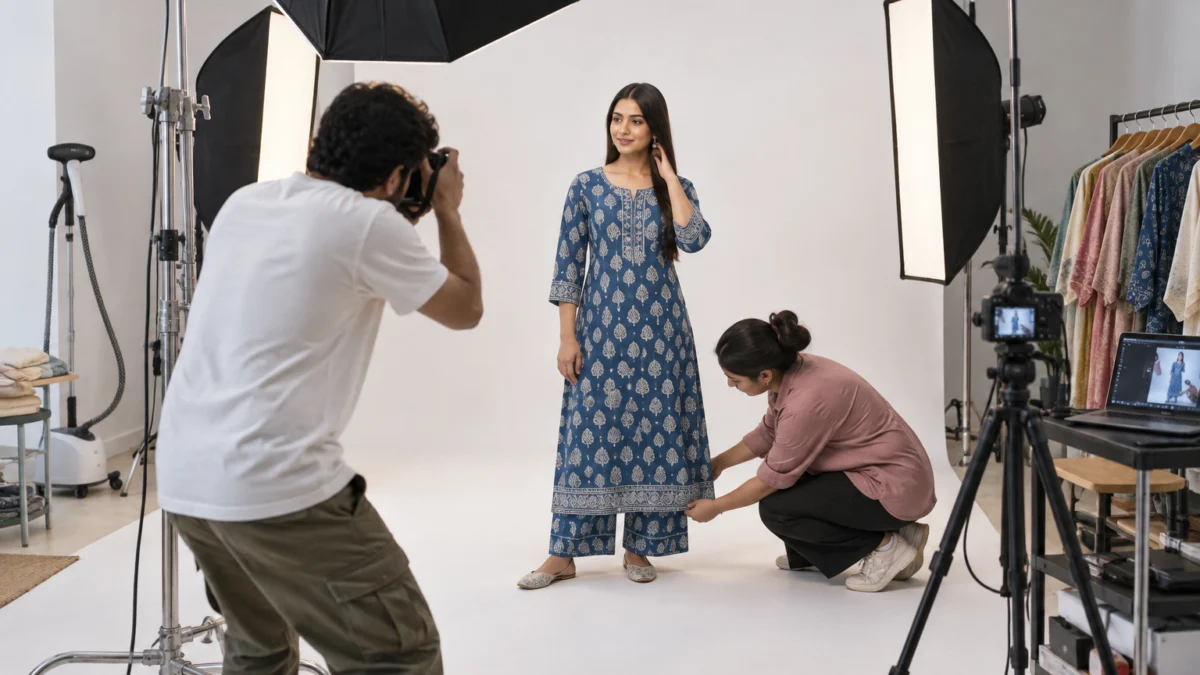
For dresses, kurta sets and co-ords, the model frame is where most image rejections start: cropped footwear, a tilted horizon, or one angle shot on a different day with different light. Planned on-model fashion shoots solve this because the camera height, distance and lighting are locked before the first garment is dressed, so every style in the lot looks like one catalogue.
How do you fix Style Group ID conflicts and duplicate SKUs on Myntra?
A Style Group Conflict usually means two styles that should be separate share one Style Group ID, or one design is split across groups inconsistently. A duplicate SKU error means the same seller SKU, size or barcode appears twice. Fix both in the master sheet, not in the upload export.
The myntra style group id is meant to tie together variants of one design — typically the same pattern in different colours — so shoppers can switch colour on the product page. Problems start when a catalogue executive reuses a group ID for a new design, or when two people create the same design in two different lots.
Style Group conflict fixes
- One design, one group. Same cut, fabric and print in different colours → same group. A new neckline or print → new group.
- Images must match the grouping. If coral and indigo are in one group, both should be shot in the same frame, pose order and light, or the colour switcher looks broken.
- Colour attribute must be unique inside a group. Two “Blue” variants in one group will conflict; use the exact colour names your template allows.
- Check older lots. Search existing listings before assigning a group ID so you don’t collide with a style that is already live.
Duplicate SKU and barcode fixes
A myntra duplicate sku error is common when brands copy last season’s sheet and change only the colour. Keep a single master SKU register with one row per size-colour combination, and generate codes from it with a formula instead of typing them. If your brand uses GTIN or EAN barcodes, make sure every size has its own number — GS1 India explains how barcode numbers are allocated per product variant.
For colour-variant groups, consistent product-only images help a lot. Many sellers use ghost mannequin images for the extra colourways of the same design, because every variant gets the identical shape, angle and scale — exactly what a Style Group needs to look clean on the product page.
How do you fix missing mandatory attributes and “BU Validation Failed” errors?
Download a fresh template for the exact article type, fill every mandatory column with values from the allowed dropdown list, and make sure your values follow the business unit’s rules. Most myntra missing mandatory attributes and myntra bu validation failed errors come from old templates, free-typed values or the wrong article type.
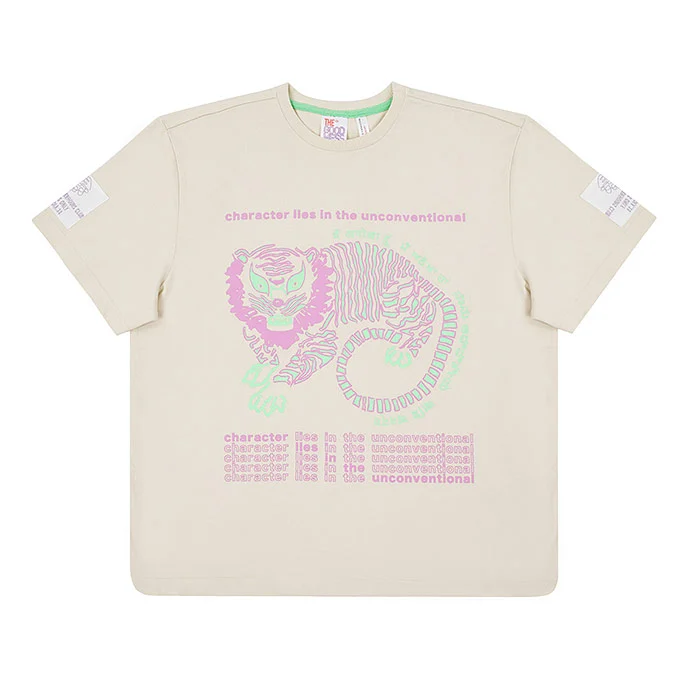
Mandatory attributes are different for a kurta set, a dress, a pair of jeans or a watch. If you reuse a kurta template for a co-ord set, the sheet may look complete to you but still be missing fields the system expects. Typical culprits are fabric, pattern, sleeve length, neck type, occasion, size chart mapping, MRP, HSN code and country of origin.
- Use the latest template from the Myntra Partner Portal for each lot, not one saved months ago.
- Select values from dropdowns — “Cotton Blend” and “cotton-blend” are not the same value.
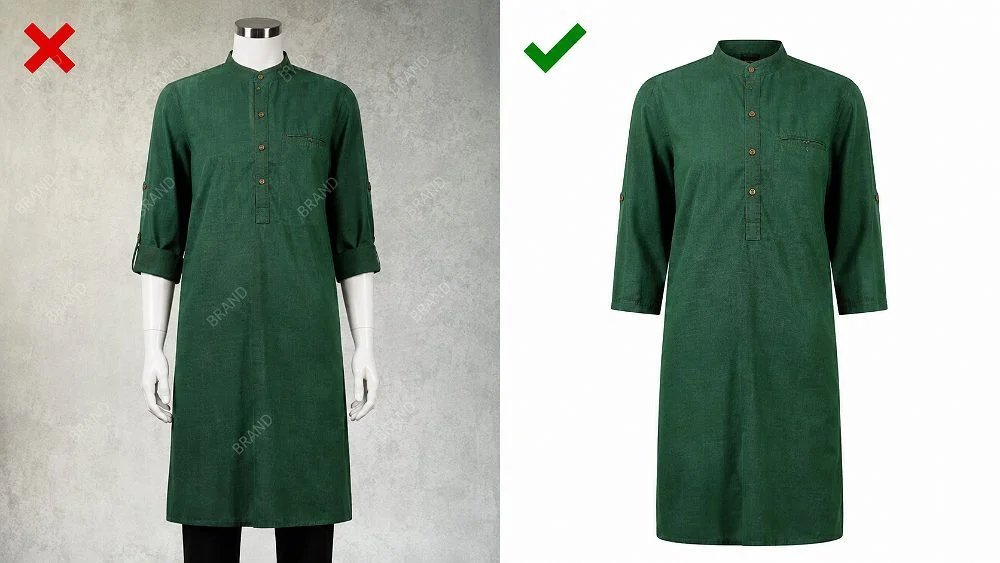
- Match the colour attribute to what the photo actually shows.
- Check that MRP, size chart and brand name follow the rules of your approved brand and business unit.
- Confirm the article type itself — a “kurta” uploaded under “tunic” will fail the attribute set.
Why images and attributes must agree
Manual QC compares what the sheet says with what the picture shows. If the sheet says “full sleeves” and the image shows three-quarter sleeves, or the colour says “Maroon” and the photo looks red, the style can be rejected even though both the data and the photo look fine on their own. A careful colour-matched editing workflow keeps the image honest to the garment, so your colour attribute stays truthful.
What are the 12 fixes to make before you re-upload a rejected Myntra lot?
Run these 12 fixes in order: report, data, images, then rules. Each one removes a common cause of myntra lot rejected emails, and together they turn a re-upload into a one-time job instead of a weekly cycle.
- Download and group the error report by error type so you fix patterns, not single rows.
- Start from a fresh template for the exact article type of every style in the lot.
- Rebuild SKU codes from one master register — one row per size-colour, no hand typing.
- Audit Style Group IDs so each group holds one design and each colour appears only once.
- Rename every image file to the exact SKU or style code with a numbered suffix.
- Convert files to the required format (usually JPG, sRGB) and remove transparency.
- Check size and orientation against the current style guide; never upscale small files.
- Count angles per style and make sure every file the sheet refers to exists.
- Remove text, watermarks and borders added during editing or by a design agency.
- Match colours and attributes — what the sheet says must be what the photo shows.
- Fill every mandatory attribute from dropdowns, including MRP, HSN and size chart.
- Re-upload as a clean new lot and keep a log of what changed, so the next lot starts right.
Which Myntra catalogue rejection reasons need a reshoot instead of an edit?
Reshoot when the image itself breaks the style guide — wrong crop, missing angles, inconsistent backgrounds or colour that cannot be corrected honestly. Edit or rename when the problem is only in the file name, format, size label or sheet data.
| Rejection reason | Usual root cause | Fix type |
|---|---|---|
| Image Not Found | File name / link mismatch | Rename or re-link |
| Wrong format or low size | Export settings | Re-export from originals; reshoot if originals are small |
| Missing angles | Incomplete shot list | Reshoot the missing angles in the same set-up |
| Cropped product or feet | Framing on shoot day | Reshoot |
| Inconsistent background | Mixed shoot days or locations | Reshoot the style as one set |
| Colour mismatch | Over-editing or wrong white balance | Re-edit from RAW; reshoot if RAW is unavailable |
| Style Group Conflict / duplicate SKU | Sheet data | Fix master sheet |
| Missing mandatory attributes / BU validation | Template or values | Fix sheet with fresh template |
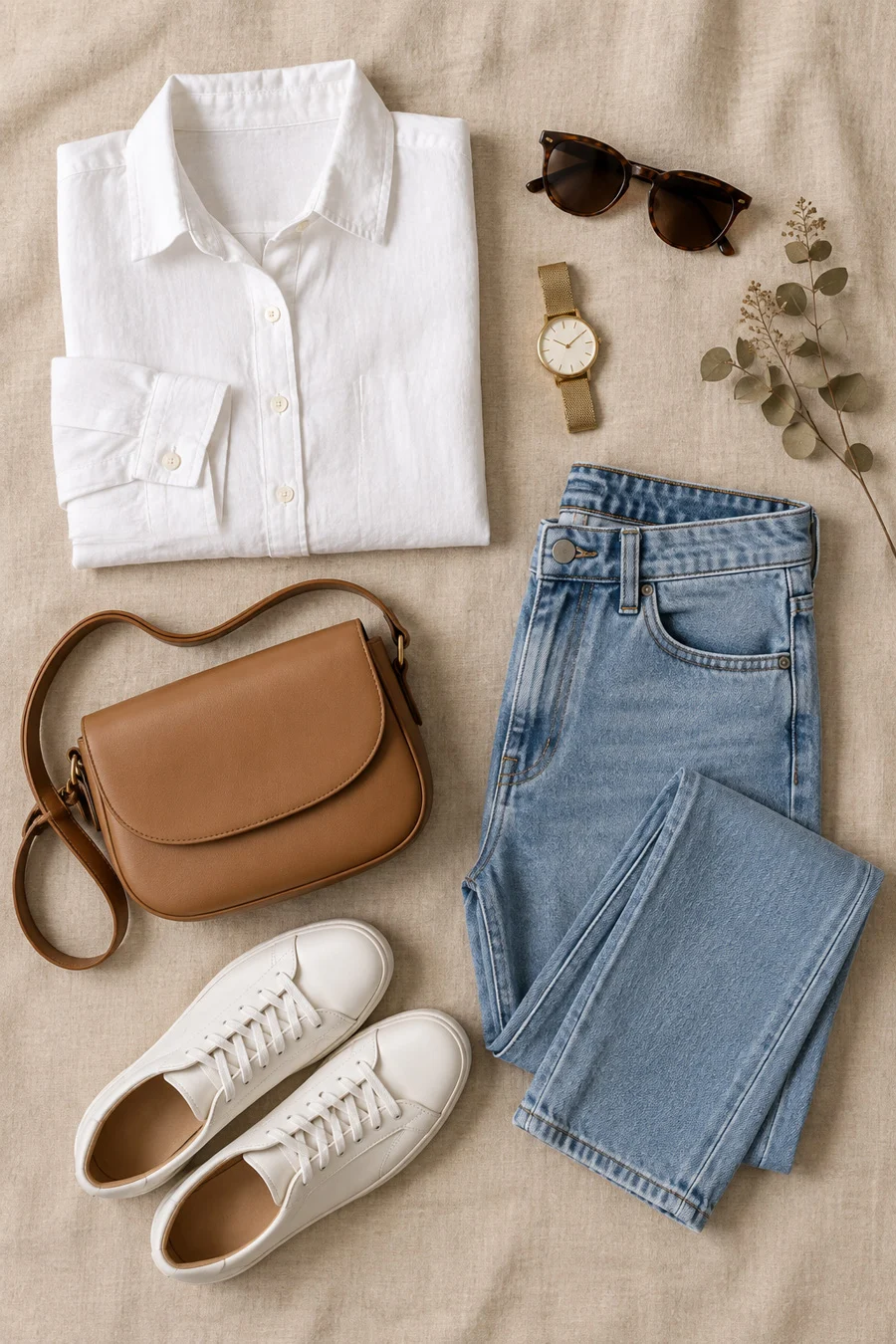
When a reshoot is needed, plan it as one complete set rather than patching single angles. Top-down flat lay shots work well for accessories, kids’ wear and combo packs, while on-model frames suit fit-led categories. Our Myntra product photography guide explains which shoot type suits which category.
What does a Myntra-ready reshoot cost at Uniqs Studio?
If your rejected lot needs fresh images, these are the official Uniqs Studio rates for apparel catalogue work:
| Shoot type | Images | Turnaround | Price |
|---|---|---|---|
| Ghost mannequin | 1 angle | 3–4 days | ₹250 / image |
| Flat lay | 2–3 angles | 6 days | ₹290 / product |
| Model Photography | 5–6 angles | 4–5 days | ₹400 / product |
| Ecommerce Reels Video | 20–25 seconds | 4–5 days | ₹900 / product |
| Garment Video with Model | 25–30 seconds | 4–5 days | ₹1,200 / garment |
Prices are per product/image as listed; call or WhatsApp +91-8076745824 for bulk catalogue quotes.
Send your rejection report and a few sample images on WhatsApp at +91-8076745824 and Satyam’s team will tell you which styles need a reshoot and which only need a rename.
What mistakes cause repeat Myntra listing rejected emails?
Repeat rejections come from fixing the symptom instead of the source: editing the export instead of the master sheet, patching single angles, and reusing old templates. Each shortcut saves an hour today and costs a week next month.
- Re-uploading the same file after correcting only the rows you noticed.
- Mixing shoot days inside one style, so backgrounds and skin tones shift between angles.
- Using AI-generated or heavily composited images that change the garment’s real colour, drape or print — QC and customers both notice, and returns rise.
- Letting three people edit one sheet without a master register, which creates duplicate SKUs.
- Copying attribute values from another marketplace where the dropdown lists are different.
- Ignoring the style guide update for your article type at the start of a new season.
A myntra listing rejected notice is not a judgement on your brand. In most lots we review, the garments and the photos are perfectly sellable — the process around them simply needs one owner and one source of truth. You can always email the lot details to [email protected] for a second look.
What should your Myntra re-upload checklist include?
Before you press upload, tick five areas: report, sheet, images, grouping and rules. If any one is not ticked, hold the lot — a one-day delay is cheaper than another myntra catalogue rejection.
Report
- Errors grouped by type
- Root cause noted for each
Sheet
- Fresh template for the article type
- All mandatory fields from dropdowns
Images
- Named exactly to SKU codes
- JPG, portrait, at or above minimum size
Grouping
- One design per Style Group ID
- No duplicate SKU or barcode
Studio-side, Uniqs Studio delivers every catalogue SKU-wise and colour-matched from our in-house studio in Delhi, and we shoot for sellers across Delhi, Gurgaon, Noida, Faridabad and Ghaziabad. Prepping garments well before the shoot also helps; our garment preparation checklist covers steaming, tagging and fit.
What do sellers ask most about Myntra catalogue rejection?
These are the questions catalogue managers and brand owners ask us most often after a rejected lot. Short answers first, so you can act quickly.
Because a myntra catalogue rejection checks the link between images, SKUs and attributes, not just image quality. A good photo with a mismatched file name, wrong colour attribute or missing angle will still be rejected.
Rename every file to the exact SKU or style code from your sheet, save it as JPG, make sure every referenced angle exists, and upload the images to the same lot before or with the sheet.
Most 2026 seller guides quote a minimum of 1000×1400 px in portrait orientation, usually JPG on a plain, light background. Check the current style guide for your article type in the Partner Portal before shooting.
It links colour variants of one design so shoppers can switch colours on the product page. Use one group per design, one row per colour inside it, and never reuse a group ID for a different design.
It means a value in your sheet breaks a rule of the business unit you sell in, such as an invalid attribute value, wrong article type, MRP issue or size chart mismatch. Use a fresh template and dropdown values.
Edit or rename when the issue is file names, format or data. Reshoot when the crop, angles, background consistency or true colour are wrong — those cannot be fixed honestly in editing.
What is the next step after fixing a Myntra catalogue rejection?
Once the lot is clean and live, move from fixing to planning: build your next catalogue so it passes first time. That means a shot list, a style guide and a single master sheet before the camera comes out.
When you are ready to plan that shoot properly, our guide to planning fashion photography for Myntra walks through model selection, shot lists and styling for each category. If you would rather talk it through, call Satyam on +91-8076745824, message on WhatsApp, or visit the Uniqs Studio contact page to book a studio visit in Kalkaji, New Delhi.
Stuck with a rejected Myntra lot?
Share your error report and sample images. Uniqs Studio will tell you which styles need a reshoot and deliver SKU-named, Myntra-ready files.