
A Meesho catalog upload is the step where your registration finally turns into products buyers can see, and it is also where most new suppliers lose a week. Templates get rejected, QC flags images, and the same error file comes back again and again. This guide is part of our Meesho seller resource hub, and it covers only the listing workflow, from choosing single or bulk upload to clearing the last QC error.
At Uniqs Studio we shoot and prepare catalogues for marketplace sellers every week in our Kalkaji studio, so we see exactly which files pass and which bounce. Satyam and the team wrote this Meesho catalog upload guide the way we brief our own clients: what to keep ready, what each panel screen asks for, and how to fix the problems quickly instead of guessing.
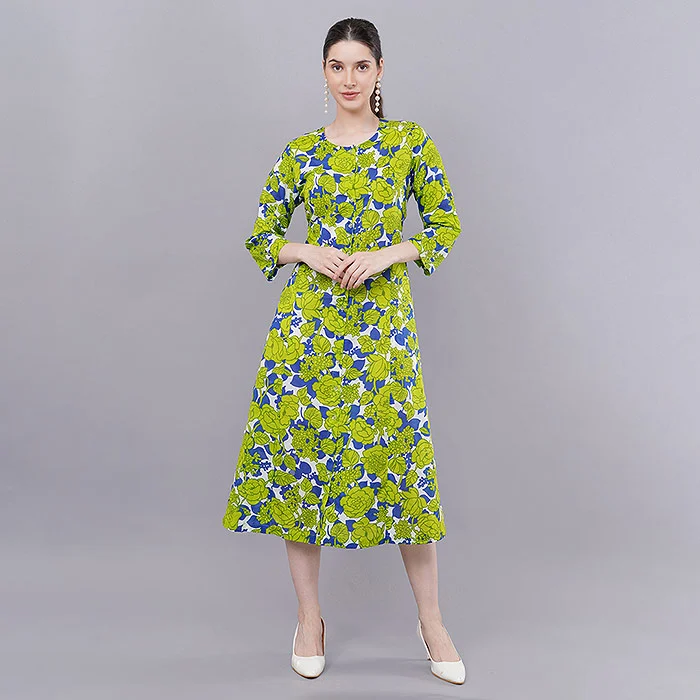
- Use Add Single Catalog for a few designs and Add Catalog in Bulk once you list more than a handful of SKUs in one category.
- Always download the template for the exact category you are listing in; the wrong template is the most common reason a bulk file fails.
- Prepare images before you open the panel: a clean front image, back, side, close-up and a fit or set image for every product.
- Read the QC status after every upload and use the downloadable error file to fix only the flagged cells, then re-upload.
- Most rejections are preventable with consistent SKUs, correct HSN and GST values, realistic MRP and compliant photos.
What Is a Meesho Catalog Upload and How Does It Work?
A Meesho catalog upload is the process of adding products to your Meesho Supplier Panel so they can pass quality check (QC) and go live in the app. You either add one catalogue through a form or upload many products at once through a category template, attach images, and then wait for QC to approve or flag them.
On Meesho, the catalogue is the unit the panel tracks. A catalogue sits inside one category (for example, women’s kurtis or kids’ sets) and holds one or more closely related products. Each product carries its own images, SKU, sizes, price and stock. When you upload, every product is checked for mandatory details, category rules and image quality before it is published.
You do all of this from the Meesho Supplier Panel, under the catalogue upload section in the left menu. The panel’s screens change from time to time, so the button names in this guide describe the flow most suppliers see in 2026; if your panel looks slightly different, the logic stays the same.
Catalogue, product and variant: the three terms you must not mix up
- Catalogue – the group the panel tracks through upload and QC.
- Product – one design inside the catalogue, with its own images and SKU.
- Variant – the size (or size and colour) options of that design, each with stock and sometimes its own price.
Mixing these up causes many of the errors later in this guide. If two colours of a kurti are entered as one product, the images will not match the variant the buyer picks, and that is a return waiting to happen.
What Do You Need Ready Before a Meesho Catalog Upload?
Before you open the upload screen, keep your account verification, category, SKU list, pricing, tax details, size chart and finished images ready in one folder. Having everything prepared turns a two-day struggle into a one-hour task, because the panel does not save half-filled bulk files for you.
If you have not finished onboarding yet, complete the Meesho seller registration steps for GST and non-GST suppliers first. Once your account is active, build a simple master sheet on your laptop with one row per product. This sheet becomes the source you copy into the Meesho template, and it saves you from retyping data for other marketplaces later.
- Category decided: the exact leaf category (for example, Women Ethnic » Kurtis), not just “clothing”.
- SKU codes: one unique, readable code per design and size, such as KRT-245-BLU-M.
- Prices: MRP and your selling price worked out after commission and shipping. Our breakdown of Meesho seller fees and shipping charges helps you set a price that still leaves profit.
- Tax details: the correct HSN code and GST rate for each product, which you can cross-check on the official GST portal.
- Size chart: measured on the actual garment, in inches, for every size you list.
- Weight and package size: the packed weight, because it affects shipping charges.
- Images: exported, renamed by SKU and sorted into one folder per product.
How Do You Upload a Single Catalog on Meesho?
To upload a single catalog on Meesho, open the catalogue upload section, choose Add Single Catalog, select your category, upload the images, fill the product form and submit it for QC. It is the best route for your first few products because the form shows each field and its allowed values on screen.
- Open catalogue uploads. In the Supplier Panel menu, go to the catalogue upload section and choose the single catalogue option.
- Select the category. Search for the product type and pick the most specific category offered. A kurta set listed under “kurtis” will fail category checks.
- Add the images. Upload the front image first, then the back, side, close-up and fit or set images in the slots the screen offers for that category.
- Fill product details. Enter the product name, fabric, pattern, sleeve and neck type, and the other attributes; drop-down fields only accept the values listed.
- Add variants, price and stock. Enter each size with its stock, MRP, selling price, SKU, HSN and GST rate, plus weight.
- Submit for QC. Review everything once, submit, and note the catalogue in your master sheet so you can track its QC status.
Meesho single catalog upload: when it is the right choice
Single upload suits a new supplier testing three to five designs, a brand adding one new style mid-season, or anyone fixing one rejected product. It is slower per product, but you see each mandatory field clearly, so it is also the best way to learn what the category template will later ask for in bulk.
How Does Meesho Bulk Upload Work With Category Templates?
Meesho bulk upload works through a category-specific Excel template: you download the template for one category, fill one row per product or variant, upload the file and attach images, and the panel then processes the file and sends it to QC. Each upload is tracked separately, so you can see which file succeeded and which needs fixing.
Bulk upload is where catalogue managers save the most time, and also where small mistakes multiply. One wrong drop-down value copied down fifty rows becomes fifty errors. That is why we always fill the template from a clean master sheet rather than typing directly into it.
Step-by-step: Meesho bulk upload with a catalog template
- Choose the bulk option. In catalogue uploads, choose the bulk catalogue option and search for your exact category.
- Download the Meesho catalog template. Download the Excel file for that category only. Templates differ between categories, so a saree template cannot be reused for kurtis.
- Read the instruction rows. Templates mark mandatory and optional columns and list allowed values. Keep the header rows exactly as they are.
- Fill one row per product or size. Paste values from your master sheet using “paste values only” so hidden formatting does not break the file.
- Attach the images. Add images in the way your template and upload screen ask for, keeping the front image first for each product.
- Upload and note the file reference. Upload the completed file, note the reference the panel shows for it, and check its processing status later.
| Template column type | What it usually contains | Common mistake |
|---|---|---|
| Identity | Product name, SKU, brand (or generic), style code | Duplicate SKUs across sizes or colours |
| Attributes | Fabric, pattern, sleeve, neck, occasion, fit | Typing a value instead of choosing from the list |
| Variants | Size, stock per size | Size names that do not match the size chart |
| Price and tax | MRP, selling price, GST rate, HSN code | Selling price above MRP, wrong HSN |
| Logistics | Weight, package dimensions | Unrealistic weight that changes shipping charges |
| Images | Front image plus additional views | Images not matching the product row |
Single vs Bulk Upload: Which Should You Choose?
Choose single upload when you are listing a few products or learning a new category, and bulk upload when you list ten or more products in the same category. Many suppliers use both: single to get one product live as a reference, then bulk for the rest of the collection.
| Factor | Meesho single catalog upload | Meesho bulk upload |
|---|---|---|
| Best for | 1–5 designs, first-time listing, fixes | 10+ designs in one category, season launches |
| Learning curve | Low – every field is on screen | Medium – you must read the template |
| Speed per product | Slower | Much faster once the template is clean |
| Error handling | Fix in the form | Download the error file, fix cells, re-upload |
| Risk | Typing mistakes on one product | One mistake repeated across many rows |
How Should You Prepare Images for Meesho Catalog Upload Image Slots?
Prepare one compliant front image plus four to five supporting images per product, all in the same ratio, colour-true and free of text, logos or contact details. The front image fills the first slot and decides both QC and clicks, so it must show only the exact product you ship on a plain background.
The full rulebook (sizes, ratios, what QC flags) is in our Meesho photography guidelines for passing catalogue QC. For the upload itself, the practical point is order and consistency: every product in a catalogue should follow the same image sequence so the app shows a neat, comparable set.
Meesho catalog images: the slot order we use
- Front – the compliant hero image, product centred and filling most of the frame.
- Back – back neck, zips, prints or buttons.
- Side or three-quarter – length, flare and fall of the fabric.
- Fabric close-up – weave, print and true colour.
- Detail – embroidery, neckline, cuffs or hardware.
- Fit or set image – on-model fit, or every piece of a set laid out together.
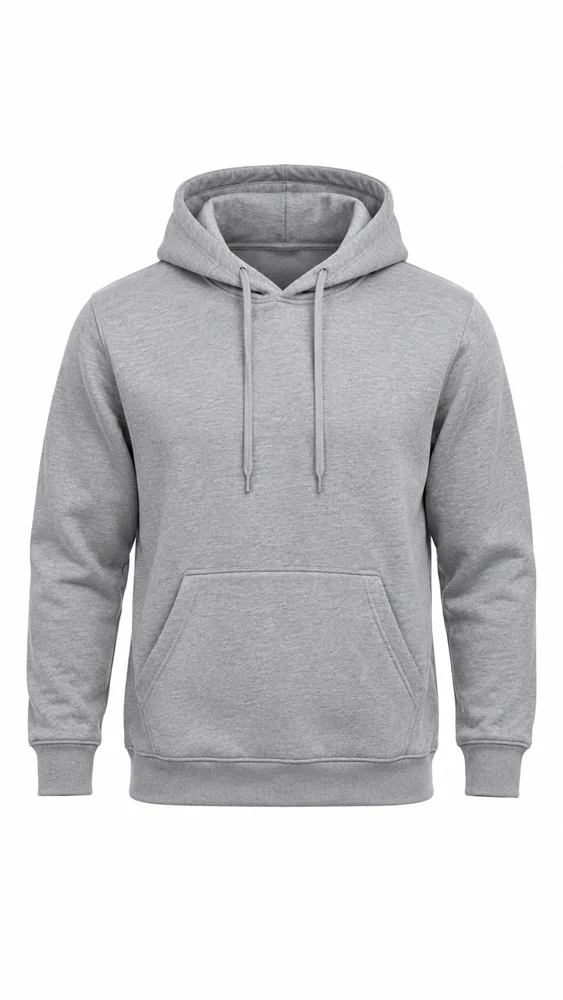
For tops, shirts, kurtis and hoodies, ghost mannequin shots give a consistent front image across hundreds of SKUs without booking a model for each one. They also keep the neckline and shape identical between colours, which helps QC match images to the right variant.
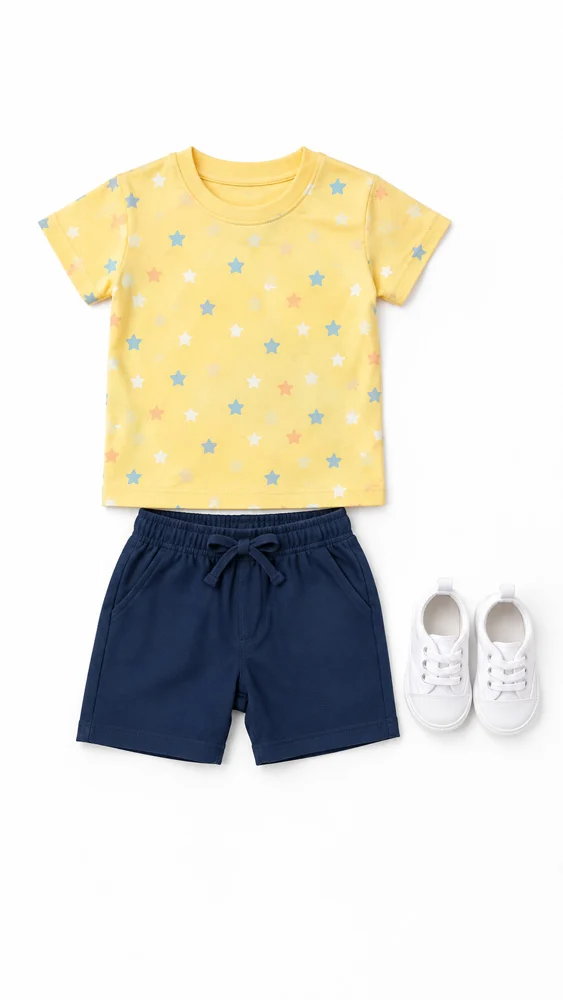
Kids’ sets, combo packs and accessories are different: buyers need to see every piece that arrives in the parcel. Here, flat lay photography shows the full set in one clean, top-down frame, and it prevents the classic “item missing” complaint after delivery.
Export settings that upload cleanly
We export Meesho files as sRGB JPEGs, 1200 × 1500 px for apparel and 1500 × 1500 px for square products, usually under 2 MB each. Name files by SKU and view, such as KRT-245-BLU-front.jpg, so nobody attaches the blue kurti’s back view to the pink kurti by mistake during a long bulk session.
How Do You Read Meesho QC Status After Upload?
After upload, the panel shows the QC status of each file or catalogue, typically as in progress, passed, or with errors that need your action. Products that pass appear in your inventory as live; products with errors stay offline until you fix and re-upload them.
Check the QC section the same day you upload and again the next working day. QC time depends on volume and category, so do not plan a launch on the assumption that a catalogue will be live within a fixed number of hours. If a file stays “in progress” for unusually long, re-check that it actually finished uploading before you raise a ticket with Meesho support.
| Meesho QC status (typical wording) | What it means | What you do |
|---|---|---|
| In progress | File received, checks running | Wait; do not re-upload the same file |
| Error / action required | Some rows or images failed | Download the error file and fix flagged items |
| Passed / live | Products approved and visible | Check inventory, stock and price once |
9 Meesho Catalog Upload Errors and How to Fix Them
The nine errors below cause most failed Meesho catalog uploads we see: wrong template, missing mandatory fields, invalid values, duplicate SKUs, price and tax mistakes, size mismatches, image problems, colour mismatch and copied or duplicate listings. Each one has a simple, repeatable fix.
1. Wrong category template
Uploading a dress into a kurti template, or using an old template saved months ago, makes whole files fail. Always download a fresh template for the exact category on the day you upload.
2. Mandatory fields left empty
One empty mandatory cell rejects the row. Before uploading, filter each mandatory column for blanks. Fabric, pattern and size are the usual culprits.
3. Invalid drop-down values
Typing “Cotton blend” when the list says “Cotton Blend”, or adding an extra space, counts as an invalid value. Pick values from the template list and paste as values only.
4. Duplicate or messy SKUs
Reusing a SKU for two sizes or two colours confuses inventory and orders. Use one clear pattern, such as style-colour-size, and never reuse retired codes.
5. Price, MRP or GST mistakes
A selling price above MRP, a wrong GST rate or an HSN code that does not match the product type will be flagged. Fix these in the master sheet, not only in the template, so the error does not return next season.
6. Size chart and variant mismatch
If your template lists S to XXL but the size chart only covers S to XL, or the measurements look copied from another garment, the product may fail or attract returns later. Measure the actual sample for every size.
7. Image quality and compliance problems
Blurry, stretched or dark photos, text overlays, watermarks, phone numbers and collages are flagged at QC. Re-export clean files rather than cropping a WhatsApp image; a professionally shot front image solves this error for good.
8. Colour and variant mismatch between images and data
If the row says “navy” but the image looks royal blue, buyers complain and QC may flag it. Shoot under calibrated light and name the colour exactly as it looks in the final photo.
9. Duplicate or copied listings
Re-uploading a product that is already live, or using images copied from another seller, can lead to rejection or takedown. Use your own photographs and check your inventory before re-listing a design.

| Error | Quick check before upload | Permanent fix |
|---|---|---|
| Wrong template | Category name in file matches listing | Fresh template per upload |
| Empty mandatory fields | Filter blanks per column | Master sheet with required columns |
| Invalid values | Compare with template list | “Golden row” per category |
| Duplicate SKUs | Remove duplicates check | Style-colour-size SKU rule |
| Price / tax | Price ≤ MRP, HSN verified | Pricing sheet after fees |
| Size mismatch | Sizes match chart | Measure actual samples |
| Image problems | No text, sharp, same ratio | Professional catalogue shoot |
| Colour mismatch | Image vs garment side by side | Colour-calibrated workflow |
| Duplicate listing | Search inventory first | Own photos, one live listing per design |
How Do You Use the Meesho Download Error File to Re-upload?
Open the failed file in the QC section, use the download error file option, fix only the cells or images the file flags, save it in the same format and upload it again. The error file is the fastest route because it tells you the exact row and reason instead of making you check the whole sheet.
- Download the error file for the failed upload from the QC section.
- Sort by the error column so similar problems sit together, then fix them in batches.
- Update your master sheet too, so the same mistake does not come back next time.
- Replace flagged images with clean exports if the reason is image-related.
- Re-upload only the corrected rows where the panel allows it, and track the new file’s QC status.
If the same image keeps failing after two attempts, stop re-uploading it. The issue is the photograph itself, and a re-shoot usually costs less than a week of lost listing time. You can share the error reason with us on +91-8076745824 and we will tell you honestly whether it needs a re-shoot or only an edit.
How Does Uniqs Studio Prepare Upload-Ready Meesho Catalogues?
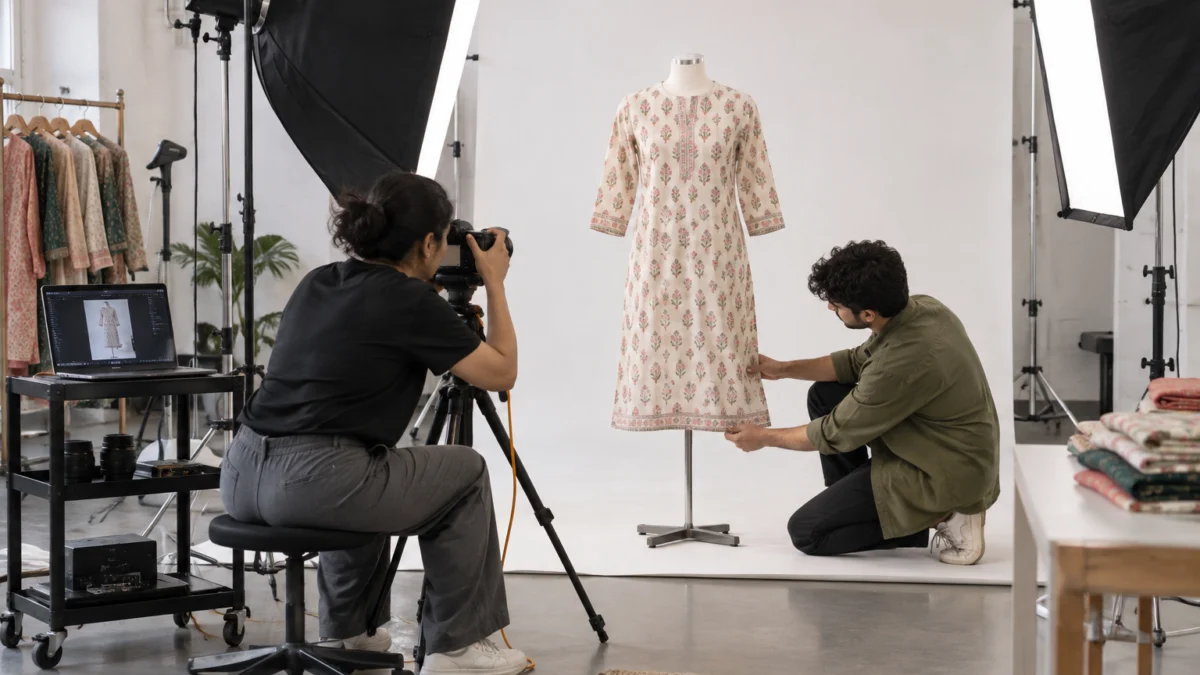
Uniqs Studio plans every Meesho shoot around the upload: we confirm the category and image sequence first, shoot each SKU in the same order, colour-check against the garment and export files named by SKU. Sellers get a folder they can attach directly to their template without renaming anything.
With 9+ years in ecommerce production and 500+ D2C brands and marketplace sellers served, our team has learned that most QC problems start at the shoot, not in the panel. When a catalogue needs fit and drape shown on a person, our on-model fashion photography shoots front, back, side and detail frames in one sequence, so every product in the catalogue looks consistent.
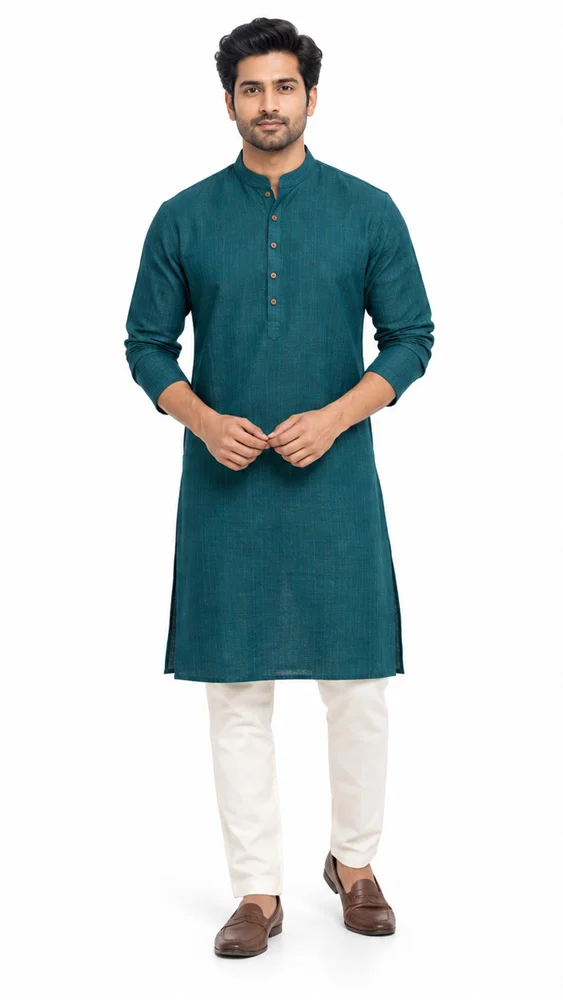
Satyam personally reviews the first set of every new client’s catalogue, comparing the photos with the garments on the rack. That single check catches colour shifts, wrong sizes on the model and missing set pieces before they ever reach Meesho QC.
| Shoot type | Best Meesho use | Slot it fills |
|---|---|---|
| Ghost mannequin | Tops, shirts, kurtis, hoodies, jackets | Front, back, side |
| Flat lay | Kids’ sets, combos, accessories, folded packs | Front or set image |
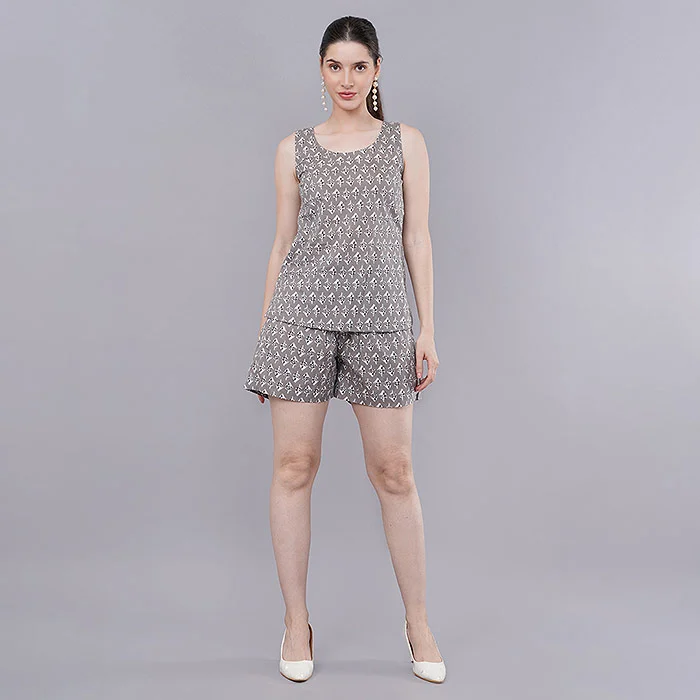
| On-model | Dresses, co-ords, sarees, kurta sets | Fit image, front for fashion styles |
| Macro detail | Embroidery, prints, fabric texture | Close-up and detail |
How Much Does a Meesho-Ready Catalogue Shoot Cost?
At Uniqs Studio, Meesho-ready catalogue shoots are priced per image or per product, from ₹250 per ghost mannequin image to ₹400 per product for model photography. The table below shows the official rates and turnaround for the shoot types most Meesho apparel sellers need.
| Shoot type | Images | Turnaround | Price |
|---|---|---|---|
| Ghost mannequin | 1 angle | 3–4 days | ₹250 / image |
| Flat lay | 2–3 angles | 6 days | ₹290 / product |
| Model Photography | 5–6 angles | 4–5 days | ₹400 / product |
| Footwear | 4–5 angles | 5 days | ₹245 / product |
| Jewellery (ring, earring) | 2–3 angles | 4–5 days | ₹300 / product |
| Ecommerce Reels Video | 20–25 seconds | 4–5 days | ₹900 / product |
| Garment Video with Model | 25–30 seconds | 4–5 days | ₹1,200 / garment |
Prices are per product/image as listed; call or WhatsApp +91-8076745824 for bulk catalogue quotes.
Call +91-8076745824 or message us on WhatsApp at +91-8076745824 with your category and SKU count, and we will suggest the right mix of shoot types for your catalogue.
Meesho Catalog Upload Checklist: What to Check Before You Click Submit
Run this checklist on every file before you submit it. It takes about ten minutes and prevents most of the QC errors described above, especially on large bulk uploads.
- Fresh template downloaded for the exact category.
- All mandatory columns filled; no blank cells.
- Drop-down values picked from the list, pasted as values only.
- Unique SKU for every design, colour and size.
- Selling price at or below MRP; GST rate and HSN code verified.
- Size chart measured on the real garment and matching listed sizes.
- Packed weight entered realistically.
- Front image first: one product, plain background, no text or logo.
- Same ratio and image order for every product in the catalogue.
- Image colour checked against the actual garment.
- Files named by SKU and view, matched to the right row.
- Upload reference noted so you can track QC status.
What Is Changing for Meesho Catalog Uploads in 2026-2027?
Marketplaces are moving towards more automated checks on images and catalogue data, stricter action against copied content, and a stronger focus on reducing returns. For suppliers, that means clean, original photos and accurate data matter more each year, not less.
- Automated image checks: blurry, text-heavy or copied images are easier for systems to detect, so shortcuts get caught faster.
- Returns-focused quality: accurate colour, size charts and fit images are increasingly important because returns hurt both buyers and suppliers.
- Bulk-first workflows: growing sellers rely on templates and master sheets, so data discipline becomes a real business skill.
- Real photos over AI images: AI-generated garment images can misrepresent fabric, fit and colour. We always recommend real photographs of the exact product you ship.
Uniqs Studio shoots ghost mannequin, flat lay and on-model catalogues in our Kalkaji studio and exports files named by SKU, ready for your template. Call Satyam on +91-8076745824 or email [email protected].
Meesho Catalog Upload FAQs
Short answers to the questions new Meesho suppliers ask us most often about uploading catalogues, QC and fixing errors.
Log in to the Meesho Supplier Panel, open catalogue uploads, choose single or bulk upload, select the exact category, add images and product details (or fill the category template), and submit for QC. Products go live once they pass QC.
Single upload uses an on-screen form for one catalogue and is best for a few products. Bulk upload uses a downloadable Excel template for one category, so you can list many products at once and fix errors with an error file.
QC time varies with category and volume, so there is no fixed guarantee. Check the QC status on the day of upload and the next working day, and avoid re-uploading the same file while it is still in progress.
It is a file you download for a failed upload that lists each rejected row and the reason. Fix only the flagged cells or images, save the file in the same format and re-upload it.
Use the slots your category offers; in practice four to six images work well: front, back, side, fabric close-up, detail and a fit or set image. The front image must show only the product on a plain background with no text.
The usual causes are a wrong category template, empty mandatory fields, invalid values, price or tax errors, and non-compliant or low-quality images. If images fail repeatedly, re-shoot them instead of re-uploading the same files.
Next step: once your catalogue is live, the next challenge is keeping orders from coming back. Read our guide on cutting Meesho customer returns and RTO to protect the margins your new listings earn. If you would rather discuss your catalogue directly, contact the Uniqs Studio team or email [email protected].
- Meesho Catalogue Rejection Reasons: How to Read Every QC Message
- Meesho Size Chart Guide: Measuring Garments for Fewer Returns
- Meesho Inventory and Stock Update Guide for Growing Suppliers
- Meesho Catalogue Naming and SKU System for Bulk Sellers